

Virgin Media TV 360 Box Support
Looking for help with your Virgin TV 360 Box? Check out below to answer all the questions and concerns you might have about your box and its features.


Installation Guides
Step by step guide on how to install your TV 360 Box
Troubleshooting
Support guides and troubleshooting

FAQs
FAQ's about your TV 360 Box
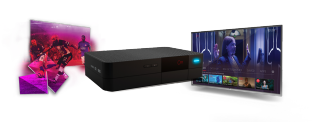
What are the benefits of the box?
- A simple set-up, the streaming box connects via Wi-Fi. That means you just need to plug and play.
- With Live TV, Recording, On Demand and much more you can watch your favourite shows and movies the way you like.
- A remote with in-built voice control to avoid typing with those pesky remote buttons. Say it, See it.
- Access to all your favourite Apps in 4K right on the box.
- Pair these features with Multi-room viewing and have your TV anywhere in the home.
- The Mini Wireless box has award winning strong sustainability credentials with very low power consumption, little material used, made from 35% recycled plastics, and no single use plastic in packaging. Apollo was awarded with the Sustainability Award during the 2020 Digital TV Europe’s VideoTech Innovation Awards.
- Award Winning Design - Red Dot Award for Product Design
The Watchlist - What is it and why will it help you enjoy more of your favourite TV?
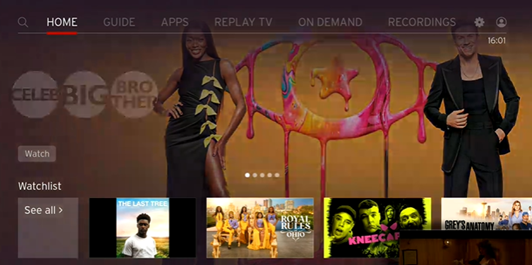
Save your favourite shows on your homepage with the Watchlist
The Watchlist on Streaming TV and TV360 allows you to save shows from any provider, all in one place on your personal homepage.
Watchlist lets you save your TV guide picks, on demand gems and app favourites
so you can create your own personal playlist of great content.
You can save telly from anywhere on our Streaming TV box – whether you’re
browsing the TV guide, the home screen, or searching for your favourite show.
All you need to do is ‘Add to watchlist’ when you browse the UI. Or use our
super powerful Voice Control by requesting the show to be added to your
Watchlist. For example ‘Add Coronation street to the Watchlist’.
You create a personalised Watchlist of shows, movies and sport you want to
watch that gets shared to the top of your homepage.
Why is the Watchlist useful?
If you like a show that has new episodes every week. There is no need to record a
show as the show will automatically update with the latest episode, whether it
is broadcast or delivered to the on demand player or app that shows it.
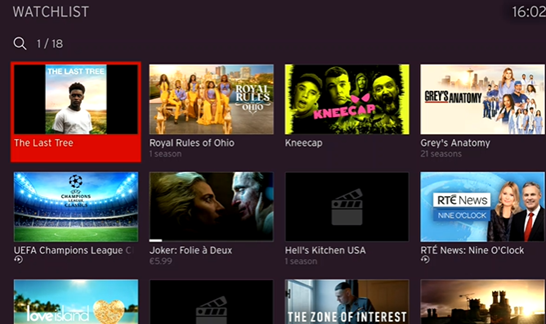
If a new episode is available for a show in your watchlist, the show will move to the front of the Watchlist.
Watchlist places all your favourite shows in one place so there’s less app hopping and more watching, with all your favourite telly saved in one place.
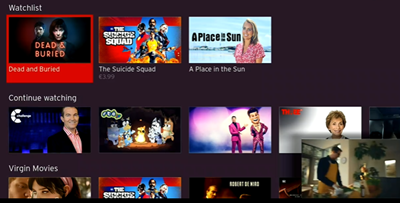
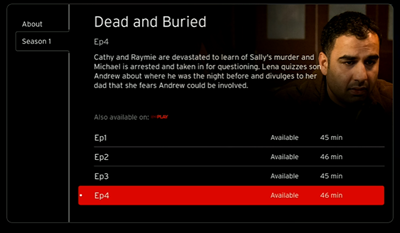
How to add a show to the Watchlist
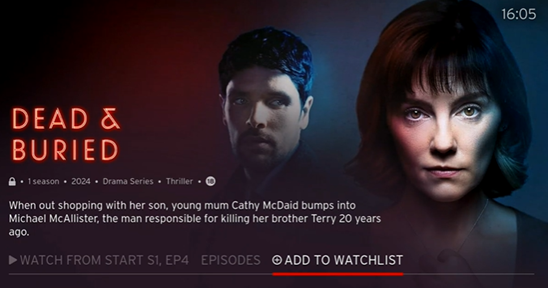
Find the show you like and click ‘Add to Watchlist’.
Now the show is featured on your homepage with all available episodes.
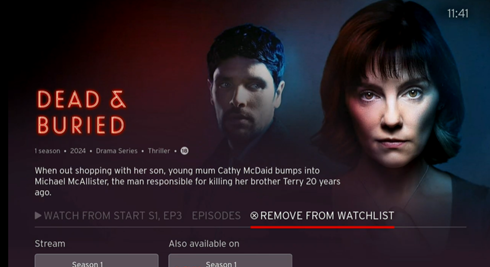
Remove a show from the Watchlist
When you have finished watching the show you can remove it from the watchlist on the details page.
How do I find the TV Apps on my Streaming TV?
Simply press menu on your remote control, select Apps and press OK. Here you will find all the Apps that are on your box.
How do I use voice control?
Say it, see it. No one likes typing with a remote control. That’s why our remotes come with an inbuilt microphone. Just hold down the microphone button and say what you want to search for, you give the command and Voice Control will do the rest.
What to do if your remote stops working
First, check the batteries. Remove and reinsert the batteries, ensuring they are facing the correct direction. If the remote still isn't working, try replacing the batteries with a new set.
Next, let's check if the remote is paired correctly with your TV. Press and hold the ‘TV’ and ‘0’ buttons together for 10 seconds until the light flashes on your Virgin TV box.
Still not working? Turn off your TV and your set top box for about 30 seconds and turn back on. Give the remote a go and see how that works.
If you need further assistance with troubleshooting your remote control or to order a replacement please message us now and we will be happy to help.
If a replacement remote is ordered for you a one-off charge of €20 for the postage will apply to your next bill. Your order will be processed within two working days and delivery will be made to a Parcel Motel of your choosing.
Further TV 360 Topics
FAQ's about your TV 360 Box
Remote
Having trouble with your remote?
Functions & Features
Check out the features of your box!
Missing channels
Get help restoring missing channels